Documents Home / Standard Phrases and Copy History / How to Use Quick Overlay
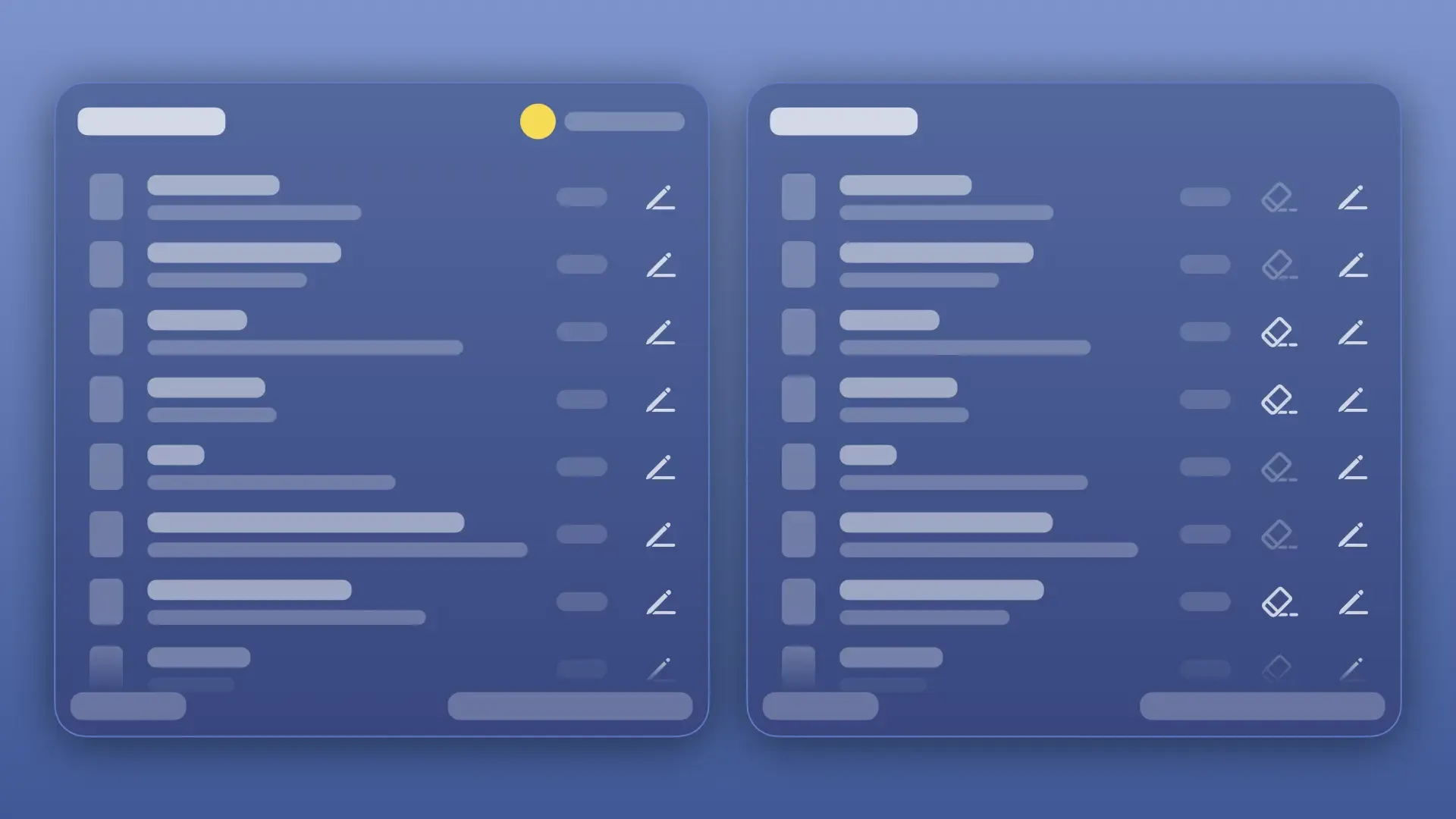
Quick Overlay is an overlay displayed only while holding down the configured shortcut key or touching the edge of the screen with your mouse cursor. When displayed via shortcut keys, ^ (Control) + ⌘ (Command) opens the Standard Phrases Overlay, and ⌥ (Option) + ⌘ (Command) opens the History Overlay by default.
Quick Overlay displayed via shortcut keys is designed for easy operation without needing to click.

By configuring the "Screen Edge" feature, you can also display Quick Overlay by touching the edge of the screen with your mouse cursor.
In the Quick Overlay displayed via Screen Edge, you can click items to select and copy them, or drag and drop them to paste into a specific location.
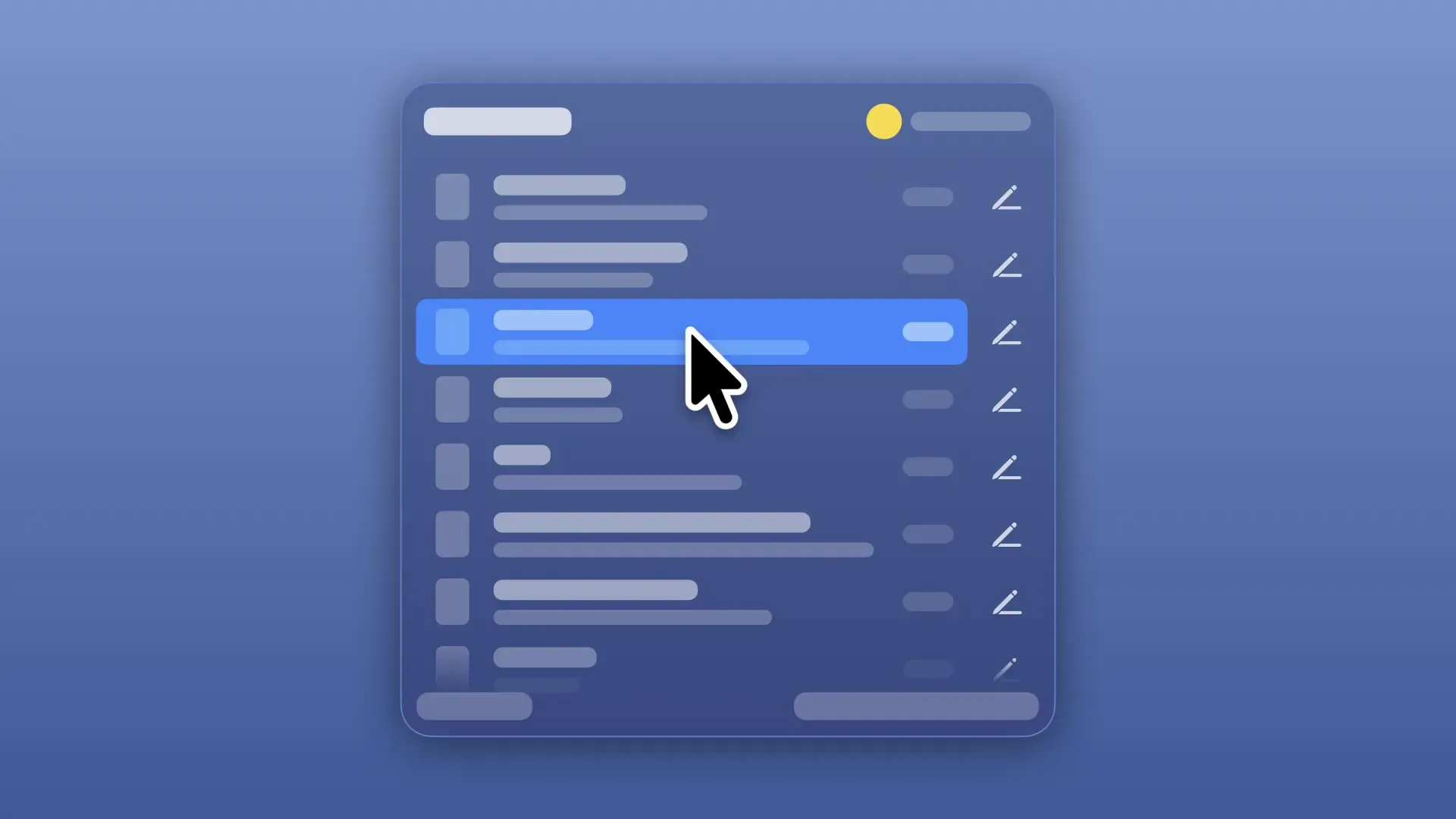
To copy a history item or standard phrase, hover over the item while the overlay is open and release the shortcut key, or click the item.
If "Quick Paste" is enabled in settings, it will be pasted automatically after copying (for history, the "Text Only" setting also applies).
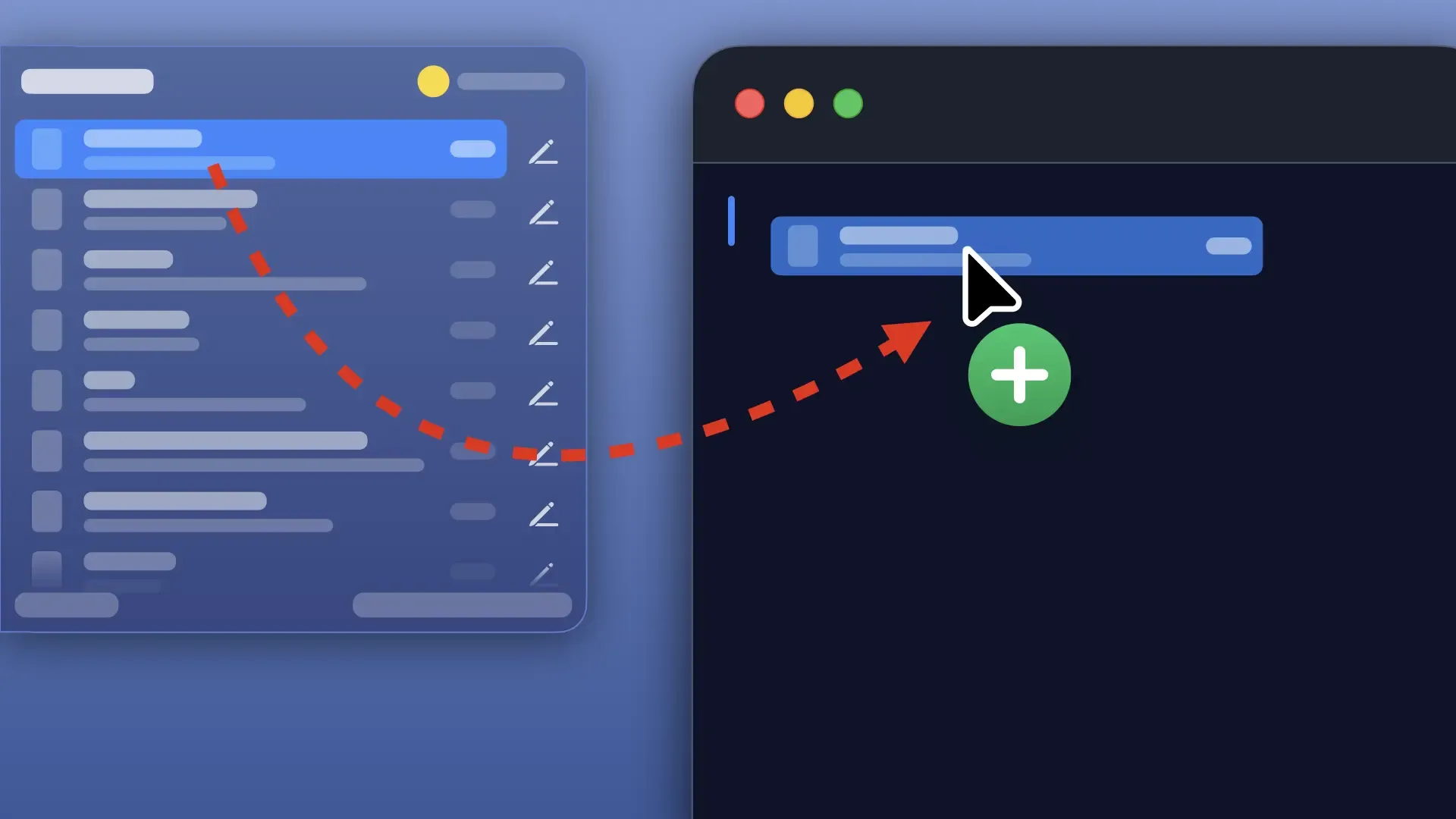
If you want to paste a history item or standard phrase into a specific location, drag the item while the overlay is open and drop it where you want to paste it.
The drag-and-drop to copy feature is available with both shortcut keys and Screen Edge.
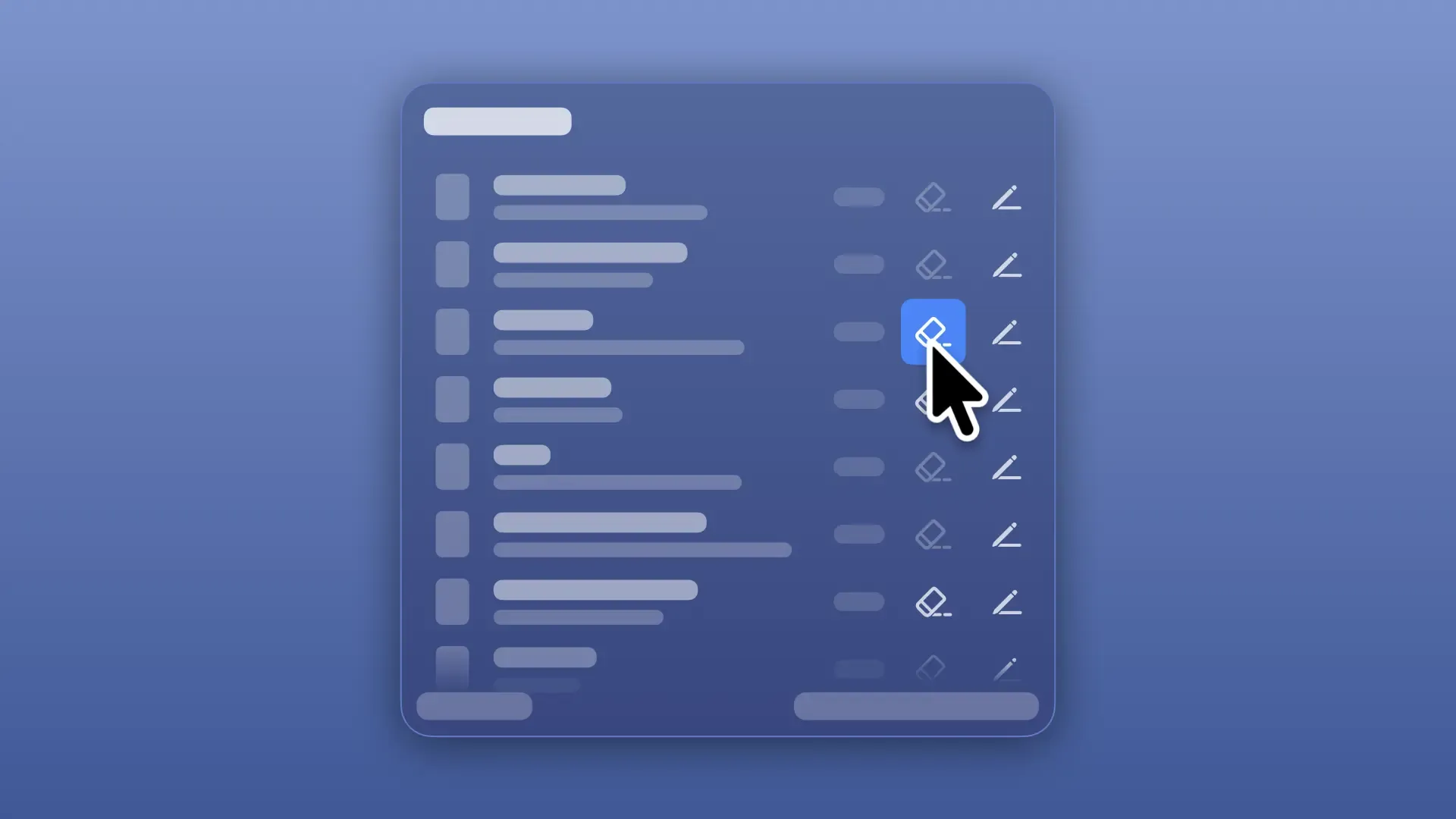
If a history item is rich text, hover over the "Copy as Plain Text" button on the right side of the item and release the shortcut key, or click the item to copy it as plain text.
If "Quick Paste" is enabled in settings, it will be pasted automatically after copying.
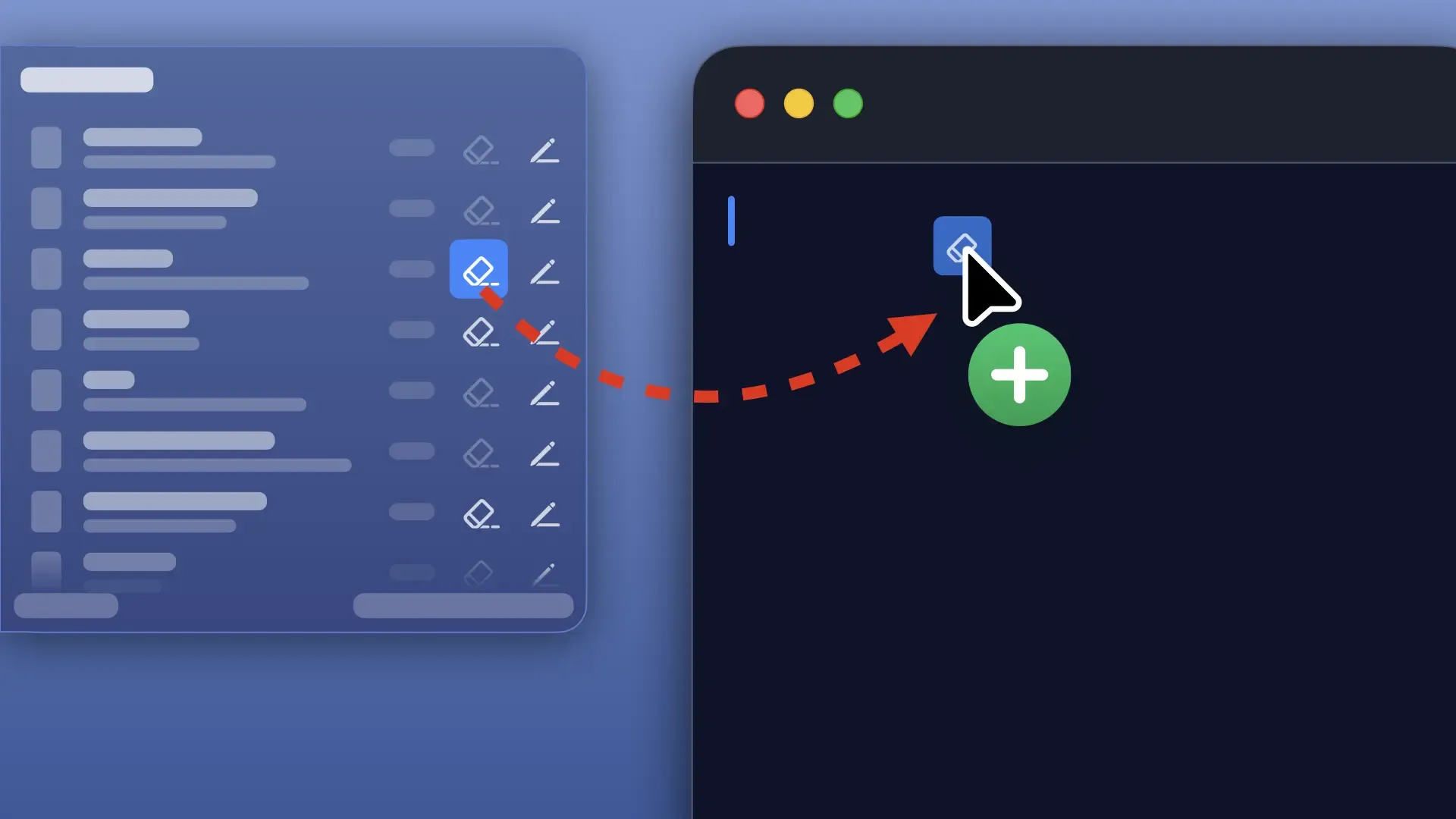
If a history item is rich text, drag the "Copy as Plain Text" button on the right side of the item and drop it where you want to paste to paste it as plain text in your desired location.
The drag-and-drop to copy feature is available with both shortcut keys and Screen Edge.
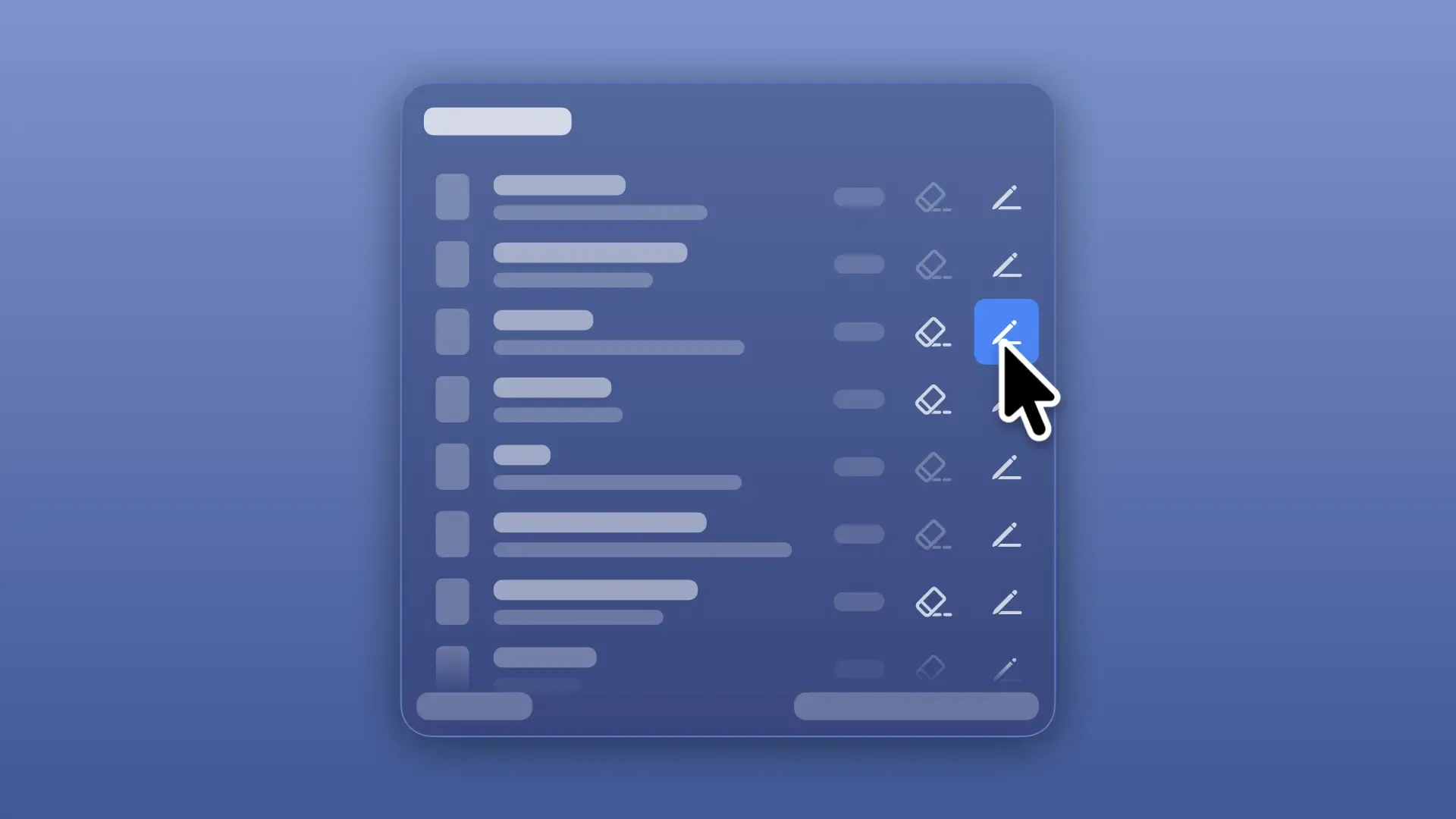
If you want to edit a history item or standard phrase before copying, hover over "Change Item and Copy..." on the right side of the item and release the shortcut key, or click the item to open the "Change Item and Copy" window and copy it with modifications.

In the Standard Phrases Overlay, hovering over the preset name displayed in the top right will automatically open the preset menu, allowing you to switch presets or create a new one.

In the preset menu, you can easily switch presets just by moving the mouse cursor.
To switch presets, hover over the preset name you want to switch to, and move the mouse cursor to the left or right of the menu (clicking is also possible). If you want to cancel switching presets, moving the mouse cursor above or below the menu closes the menu without switching presets.

To create a new preset, hover over "New Preset..." in the preset menu and release the shortcut key, or click the item to open the "Add Preset" window and create a preset.
To prevent accidental operation, moving the mouse cursor to the left or right on this menu item does not perform any action and closes the menu.
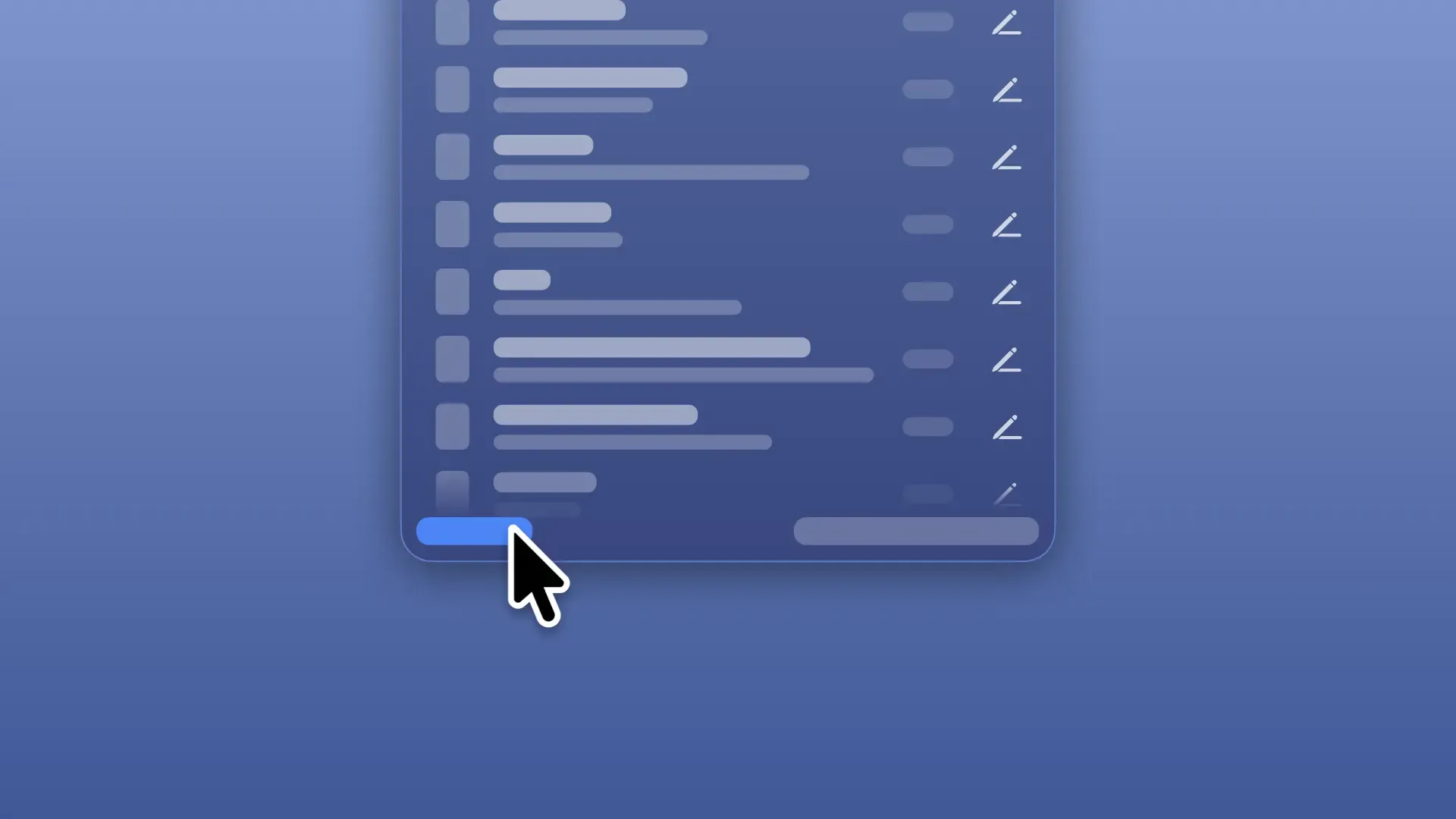
In the Standard Phrases Overlay, hover over "Add" in the bottom left and release the shortcut key, or click the item to open the "Add Standard Phrase" window and add phrases.
In the History Overlay, hover over "New Copy" in the bottom left and release the shortcut key, or click the item to open the "Enter Text to Create New Copy" window and create a new copy.
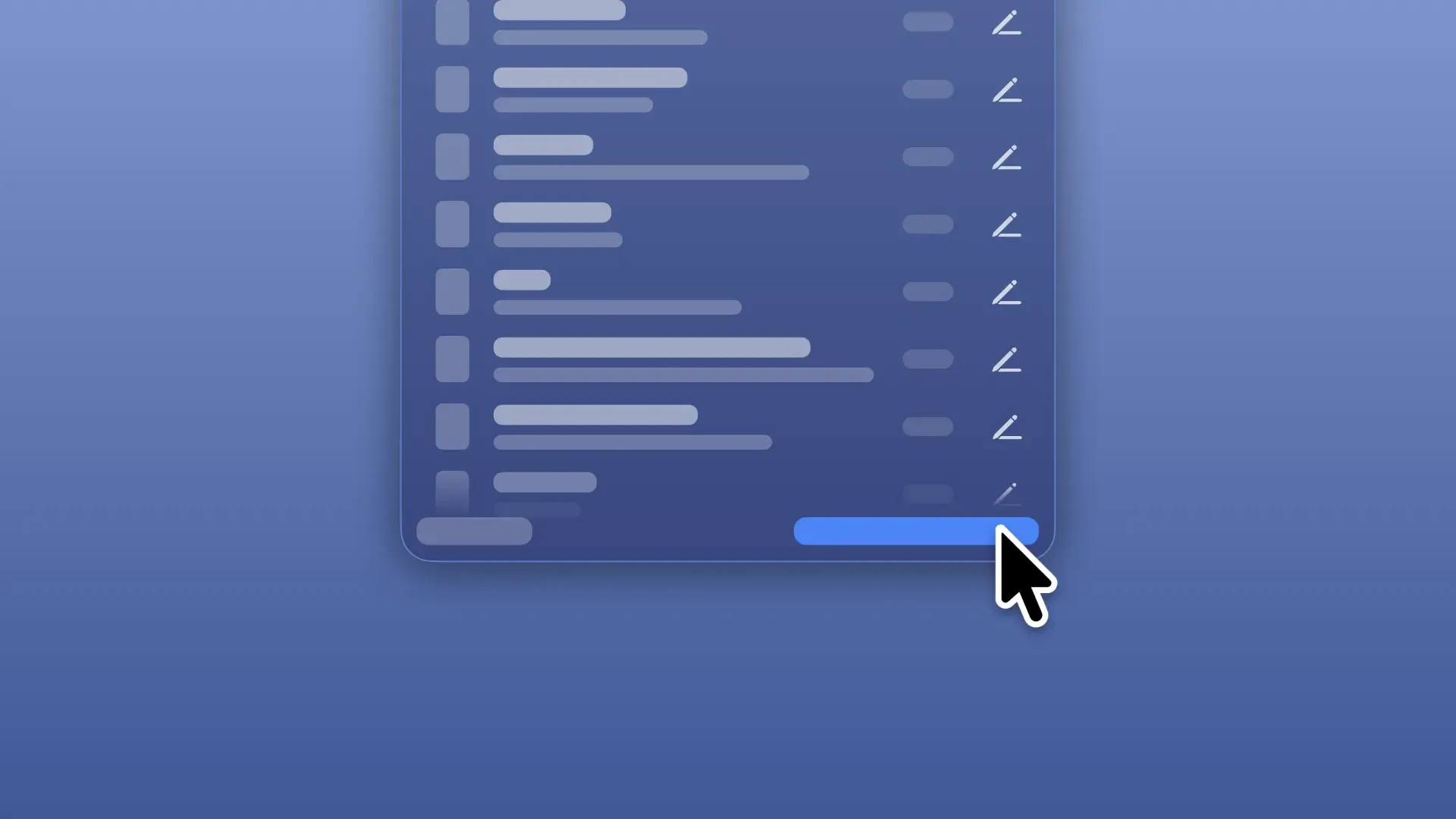
In the bottom right of the overlay, hover over "Open Standard Phrases Window" (Standard Phrases Overlay) or "Open History Window" (History Overlay) and release the shortcut key, or click the item to open the Standard Phrases or History window.

Become a Clipboard Expert


Compatible with macOS Sonoma (14.0) or later


